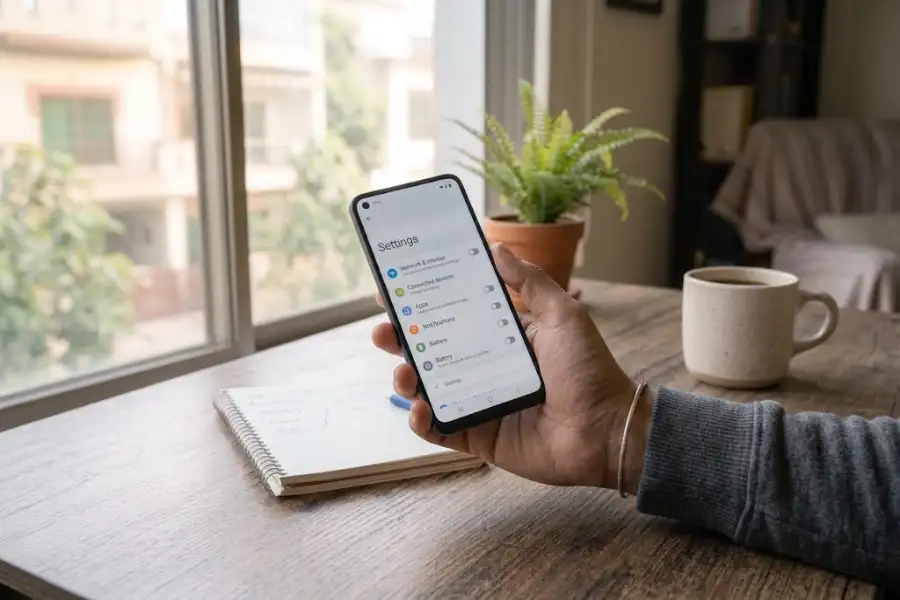
Pixel Hidden Features: 15 Settings Most Owners Never Touch
Your Google Pixel can do far more than its home screen shows. Many of the best Pixel hidden features sit inside Settings, waiting for one tap.
Most people set up a new phone, add their apps, and stop there. That is a shame. A few small switches can save time, cut noise, and keep your data safer.
This article covers 15 of the most useful Pixel hidden features. Each one comes with the menu path, a simple reason to use it, and a note on which phones get it.
Menu names can shift between Android versions. If you cannot find a setting, type its name into the search bar at the top of Settings. That works almost every time.
Which Pixel Phones Get These Features?
Most tools below work on recent models, from the Pixel 6 up. A few need a newer phone or a certain country. Google also adds new tools through Pixel Drops, which are feature updates that arrive regularly. So the list of Pixel hidden features keeps growing. To check that your phone is current, open Settings, tap System, then System update.
Pixel Hidden Features That Save You Time
1. Quick Tap
Quick Tap turns the back of your phone into a button. Double-tap the back, and your Pixel can take a screenshot, open an app, or play and pause music. It is one of the easiest Pixel hidden features to try first.
Open Settings, tap System, then Gestures, then Quick Tap. Switch it on and pick an action. If you pick Open app, tap the gear icon to choose which one. Some apps even let you jump straight to a screen, like the camera in selfie mode.
iPhone owners know this idea as Back Tap. If you like tricks like this, our list of iPhone hidden features has more.
2. Notification History
Ever swiped away an important message by mistake? Notification history keeps a record of your alerts from the past 24 hours. It is one of those Pixel hidden features you only value after you need it.
Go to Settings, tap Notifications, then Notification history, and turn on Use notification history. After that, open the same page to see anything you cleared.
3. Modes
Modes lets you choose which apps and people can reach you at certain times. Open Settings, then Modes. You will find ready-made options such as Bedtime and Driving. You can also tap Create your own mode.
A Work mode is a nice example. Schedule it for office hours and allow only your work apps and a few contacts. Bedtime mode can also turn the screen gray, which makes late-night scrolling less tempting.
4. Rules
Rules change your settings based on where you are. Go to Settings, tap System, and look for Rules in the automation area. Add a Wi-Fi network or a location as the trigger. Then pick an action.
For example, your phone can go silent when it joins your office Wi-Fi. It can switch to Do Not Disturb when you get home. Rules can send you a note each time they run. You can turn that note off.
5. Adaptive Vibration
A buzz that is too weak gets missed. A buzz that is too strong startles you. Adaptive vibration fixes both. It uses the microphone and sensors to tell if your phone is in a pocket, in a bag, or on a table. Then it adjusts the strength.
Go to Settings, tap Sound & vibration, then Vibration & haptics, then Adaptive vibration, and turn it on. Google says the audio is processed on the phone and deleted after a short time.
6. Smart Auto-Rotate
Lying on your side in bed? Normal auto-rotate often flips the screen at the wrong time. Your Pixel can use your face to judge which way you are holding the phone.
Open Settings, tap Display & touch, then Auto-rotate screen. Make sure Use auto-rotate is on, then turn on Face Detection. It may work less well in a dark room.
Pixel Hidden Features for Calls and Sound
7. Flip to Shhh
Place your phone face down on a table, and it silences alerts. It is a simple way to stay present during dinner or a meeting. Search Settings for Flip to Shhh to find the switch on your model.
8. Clear Calling
Clear Calling helps cut background noise during calls on supported Pixel phones. It helps on a busy street or in a loud cafe. Search Settings for Clear Calling and check that it is on.
9. Call Screen
Call Screen lets Google’s assistant answer unknown callers for you. You see what the caller says as text, and then you decide what to do. It is one of the Pixel hidden features worth setting up on day one.
Open the Phone app, go to Settings, then Call Assist, then Call Screen. Choose Basic, Medium, or Maximum protection. Turn on the option that screens unknown callers automatically.
10. Hold for Me
Nobody likes waiting on hold. With Hold for Me, your Pixel listens to the hold music and tells you when a real person returns. You can put the phone down and do something else. Look for it in the Phone app under Settings, then Call Assist. It works only in some countries and languages.
11. Now Playing
Your Pixel can name songs playing around you and show them on the lock screen. Google says the matching happens on the phone. Open Settings, tap Sound & vibration, then Now Playing. From there you can view your song history. You can also add a shortcut to your home screen.
12. Live Caption
Live Caption adds text to videos, podcasts, and voice notes, even with the sound off. Press a volume button, then tap the Live Caption icon under the slider. Some models can also show captions during phone calls.
Pixel Hidden Features for Privacy and Safety
13. Private Space
Private Space is a locked area inside your phone. It has its own apps, which stay out of your main app list. Use it for banking apps, or for gift shopping you want kept secret. It needs Android 15 or newer. Go to Settings, tap Security & privacy, then Private space.
Android protects data in other quiet ways too. For example, it can restart a phone that stays locked for days. You can read how the Android automatic reboot security feature works.
14. App Pinning
App pinning locks your screen to one app. Hand your phone to a child, and they cannot wander into your messages. Search Settings for App pinning and turn it on. Then open the Overview screen, tap the app icon at the top of the app, and tap Pin. Follow the on-screen message when you want to exit.
15. Battery Share
Battery Share lets your Pixel charge another device from its back, such as earbuds or another phone. Open Settings, tap Battery, then Battery Share. Not every Pixel has it, and it drains your own battery fast, so use it only when you need it. If your model has a charging limit option in Battery settings, it can also help the battery age well.
One More Setting Worth Two Minutes: Emergency Info
Go to Settings, then Safety & emergency. Add allergies, medicines, and whether you are an organ donor. This info can help people who find you in an emergency. Some models also offer car crash detection, but it depends on your country.
Settings to Handle With Care
Pixel phones hide some tools meant for app builders. Developer options is one of them. Changing the wrong switch there can slow your phone or cause errors. If you are curious, read what developer options on an Android phone do before you touch anything.
How to Find More Pixel Hidden Features
- Open the Tips app. It shows tools that fit your model, updates as new ones arrive, and gives a shortcut to set each one up.
- Type any feature name into the Settings search bar.
- Read the notes after each Pixel Drop or system update.
- Check Settings, then System, then Gestures, every few months.
Frequently Asked Questions
Are Pixel hidden features safe to turn on?
Yes. They are part of Android and Google’s own apps. Still, read the note under each switch. A tool like Adaptive vibration uses your microphone on the phone, so check that you are comfortable with that.
Do Pixel hidden features work on older Pixel phones?
Many do, but some need a newer phone. Private Space, for example, needs Android 15 or newer. Open the Tips app to see what your model supports.
Do Pixel hidden features drain the battery?
Most use very little power. If you notice a drop after turning on many at once, switch them on one at a time and watch what changes.
Why can’t I find a setting on my Pixel?
Menu names move after updates. Use the Settings search bar and check for a system update. If the setting still does not show, your model may not support it.
Start With Three Pixel Hidden Features
Your Pixel is built to do more than you may think. Start with three Pixel hidden features today: Quick Tap, Notification history, and Call Screen. They take less than five minutes to set up. Then add one new tool each week, and keep what helps.
Android hides small surprises too. For a bit of fun, see how to find the hidden game on an Android phone.