
VSCode Easter Eggs: 10 Hidden Surprises Most Developers Never Find
Visual Studio Code, commonly known as VSCode, is a free source-code editor developed by Microsoft. It is one of the most widely used code editors in the world, trusted by millions of developers daily. But beyond its powerful coding features, VSCode contains a collection of hidden surprises, called easter eggs, that most developers never find.
This article covers every confirmed VSCode easter egg, explains exactly how to find each one, and includes fun community-favourite extensions that add even more personality to your editor. Whether you use VSCode on Windows, Mac, or Linux, these hidden gems work across all platforms.
What Are VSCode Easter Eggs?
VSCode easter eggs are hidden features, jokes, animations, and surprises intentionally placed inside Visual Studio Code by its developers at Microsoft. They serve no coding purpose. They exist purely to entertain the people who find them. Much like the original concept of a software egg, the term “easter egg” here refers to any secret content hidden inside an app or program, a tradition that goes back decades in the tech industry.
VSCode easter eggs range from a seasonal Santa hat on the settings icon to a full snow animation inside your editor. Some are baked into the editor itself. Others come through community-built extensions that add virtual pets, exploding keyboards, and color-coded windows to your coding environment.
Does VSCode Have Easter Eggs?
Yes, VSCode has several confirmed easter eggs. The most well-known include the holiday Santa hat that appears on the settings gear icon every December, a falling snow animation triggered by clicking a special holiday menu, and hidden code snippets buried inside language extension files that are never documented in the official VSCode guides. When used alongside Python, VSCode’s terminal also supports the famous “import this” easter egg that prints The Zen of Python, a list of 19 programming principles hidden inside the Python language itself.
1. The Holiday Santa Hat Easter Egg
What it is:
Every December, the settings gear icon in the bottom-left corner of VSCode quietly receives a small Santa hat. This is a seasonal easter egg added by the Microsoft VSCode team to celebrate the Christmas holiday period.
How to trigger it:
Open VSCode during the December holiday season and look at the gear icon in the lower-left corner of the screen. You will see a tiny Santa hat sitting on top of it. Click the gear icon, and a special menu option labeled “Happy Holidays!” will appear. Select it to trigger a gentle snow animation that falls across your editor.
Why it matters:
This easter egg is a clear signal that the developers behind VSCode think of their users as real people, not just productivity metrics. It has appeared consistently every holiday season since at least 2018, making it one of the most reliably delivered easter eggs in any major software product.
2. Hidden Code Snippets Nobody Documents
What it is:
VSCode contains a large set of code snippets baked directly into its language extensions. These snippets are never listed in the official documentation and cannot be browsed from inside the editor. Most developers spend years using VSCode without ever knowing these exist.
Where to find them:
The snippet files are stored inside the VSCode installation folder on your computer. On Windows, the path looks like this:
[VS Code install folder]\resources\app\extensions[language]\snippets[language].code-snippets
Each supported language, including JavaScript, TypeScript, Python, HTML, and CSS, has its own snippet file in a similar location on Mac and Linux.
How to use them: While writing code in any supported file, press Ctrl + Space on Windows or Linux, or Cmd + Space on Mac, to open the autocomplete suggestion panel. Many of these hidden snippets will appear there, ready to insert full code blocks with a single keystroke.
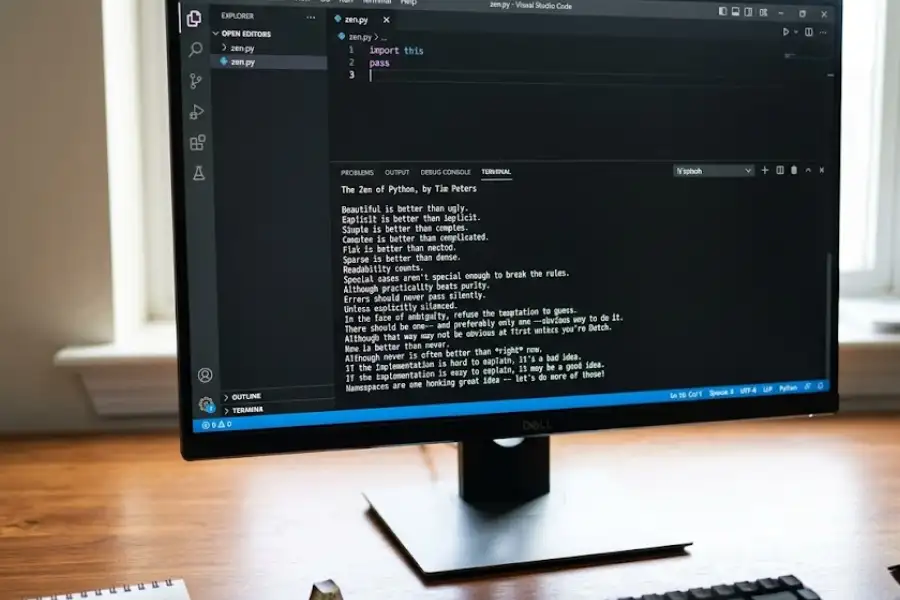
3. The Python “import this” Easter Egg
What it is:
Typing import this inside a Python shell prints The Zen of Python, 19 guiding principles for writing clean, readable Python code. This easter egg was written by long-time Python developer Tim Peters and has been part of the Python language since Python 2.2.
How to trigger it in VSCode:
Open the integrated terminal in VSCode using Ctrl + ` (the backtick key). Type python or python3 and press Enter to open the Python interactive shell. Then type import this and press Enter.
The hidden layer:
The source code behind this easter egg is itself written in ROT13, a simple letter substitution cipher. This means the code that teaches clean, readable Python is itself written in an intentionally unreadable way. The developers did this on purpose. It is one of the most cleverly self-aware jokes in all of programming.
Why VSCode developers should know this:
Since VSCode is the leading editor for Python development according to the JetBrains Python Developers Survey, this easter egg is directly relevant to the majority of VSCode users. The Zen of Python also doubles as genuinely useful coding philosophy, making this one of the rare easter eggs that is both fun and educational.
4. Zen Mode, The Full Focus Feature Most Developers Miss
What is Zen Mode in VSCode?
Zen Mode is a display setting in VSCode that hides every part of the user interface except your code. When activated, the sidebar, tab bar, status bar, line numbers, and all notifications disappear. Your code is centered on a clean, distraction-free screen.
How to turn on Zen Mode in VSCode:
Press Ctrl + K followed immediately by Z on Windows or Linux. On Mac, press Cmd + K followed by Z. To exit Zen Mode, press the Escape key twice.
Why developers love it:
Zen Mode is not widely advertised in the VSCode interface, which means many developers use the editor for years before finding it. When they do, the reaction is almost always the same, they wish they had found it sooner. It is especially useful for working through complex logic, writing documentation, or any task that requires genuine concentration without notifications pulling focus away.
How to customize Zen Mode:
Go to VSCode Settings and search for “Zen Mode.” A full list of options appears, letting you control exactly which interface elements disappear and how your code is positioned on screen.
5. VSCode Pets, Virtual Animals That Live Inside Your Editor
What is VSCode Pets?
VSCode Pets is a free, open-source extension for Visual Studio Code that adds animated virtual pets to your coding environment. It was created by developer Anthony Shaw and is available on the official VSCode Extension Marketplace. As of 2025, it has been downloaded millions of times, making it one of the most popular fun extensions in the entire marketplace.
Which pets are available?
VSCode Pets includes cats, dogs, bunnies, crabs, foxes, and more. Each pet has its own set of animations, walking, jumping, sitting, and reacting to movement. You can add multiple pets at once, name each one individually, and drop a ball into the editor panel for them to chase around.
How to install VSCode Pets:
Open the Extensions panel in VSCode using Ctrl + Shift + X. Search for “vscode-pets” and click Install. Once installed, open the Command Palette with Ctrl + Shift + P, type “Pets,” and select Pets: Start Pet Coding Session to open the pet panel.
Why developers use it:
Long coding sessions can feel isolating. Having a small animated character in the corner of the screen is a surprisingly effective way to make the environment feel warmer and less mechanical. Rubber duck debugging, the practice of explaining your code out loud to an inanimate object to find bugs, is a well-known technique among developers. VSCode Pets takes that concept and makes it genuinely entertaining.
6. Power Mode, The Extension That Makes Typing Feel Explosive
What is Power Mode for VSCode?
Power Mode is a VSCode extension that triggers animated visual effects every time you type. By default, small particles burst out from your cursor with each keystroke. The effect can be changed to flames, fireworks, magic sparks, or a Clippy animation, a direct reference to the infamous Microsoft Office animated paperclip assistant from the late 1990s and early 2000s.
The combo meter explained:
Power Mode includes a combo meter, a progress bar that fills as you type quickly and drains when you stop. Maintain a fast typing pace, and the meter stays full. Stop typing, and the combo resets to zero. It turns a normal coding session into something that feels more like a game.
How to install Power Mode:
Search for “Power Mode” in the VSCode Extensions Marketplace and click Install. After installation, go to Settings and enable Power Mode to activate the effects.
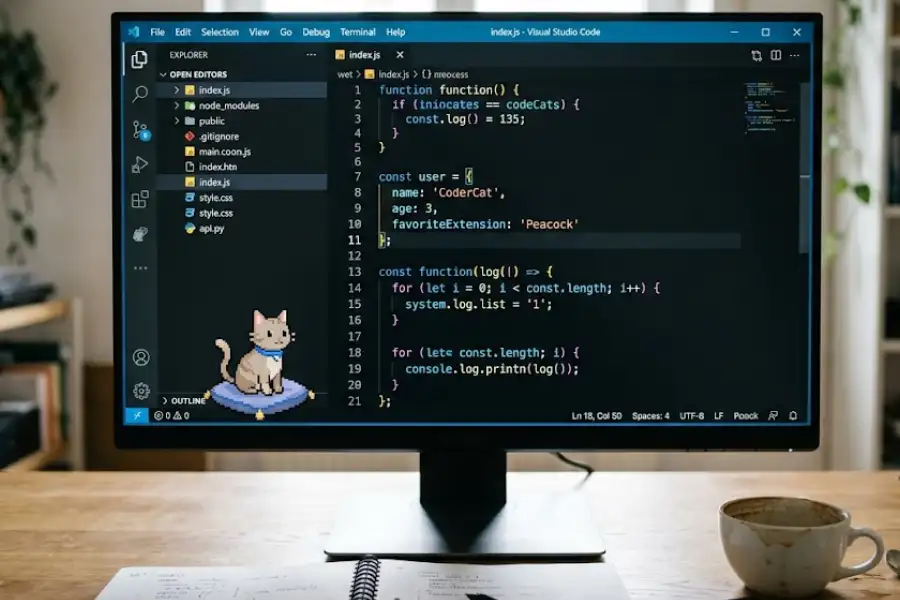
7. Peacock, Color-Coded Editor Windows
What is the Peacock extension for VSCode?
Peacock is a VSCode extension created by developer John Papa that assigns a unique color border to each VSCode window. When you work on multiple projects simultaneously, each window gets a different color, blue for one project, purple for another, green for a third, so you can immediately tell which project you are looking at without reading file names.
How to use Peacock in VSCode:
Install the Peacock extension from the VSCode Marketplace. Open the Command Palette with Ctrl + Shift + P, type “Peacock,” and select Peacock: Change to a Favorite Color. Choose a color from the list and your current window’s border will update immediately.
Who benefits most from Peacock:
Developers who manage multiple codebases, work across several repositories, or switch between client projects find Peacock especially useful. It removes a small but repeated source of friction, the moment of uncertainty when looking at multiple open windows, and replaces it with an instant visual signal that works every time.
8. vscode.dev, A Full VSCode Editor Inside Any Web Browser
What is vscode.dev?
vscode.dev is a web-based version of Visual Studio Code that runs entirely inside a web browser. It was officially launched by Microsoft in October 2021. It requires no download, no installation, and no login to use basic features. Just as you can playfully trigger chrome easter eggs without leaving your browser, you can simply go to vscode.dev in any modern browser, and a fully functional VSCode editor loads directly in the tab.
What can you do with vscode.dev?
You can open and edit local files and folders, connect to GitHub and Azure repositories, use many VSCode extensions, and write code with full syntax highlighting, IntelliSense, and formatting support, all from inside a browser tab. It works on Chromebooks, school computers, borrowed laptops, and any device where installing software is not possible.
What are the limitations?
Because vscode.dev runs in a browser, it cannot run terminal commands, execute code, or use extensions that require server-side processing. For a full development environment, the desktop version of VSCode or GitHub Codespaces is still needed. But for editing, reviewing, and writing code, vscode.dev is a genuinely complete experience.
9. The Minimap Scroll, A Feature That Hides in Plain Sight
What is the VSCode minimap?
The minimap is the small vertical panel on the right side of the VSCode editor that shows a shrunken, bird’s-eye view of your entire file. It is visible by default in every new VSCode installation, yet a large number of developers treat it as background decoration and never interact with it directly.
How to use the minimap for fast navigation:
Click and drag anywhere on the minimap to scroll through your file at high speed, jumping hundreds of lines instantly. Hover over any section of the minimap to see a zoomed-in preview of that part of the file without navigating away from your current position.
How to turn off the minimap if you prefer a cleaner editor:
Go to Settings, search for “minimap,” and toggle Editor: Minimap Enabled off. The minimap disappears immediately and your code area widens to fill the space.
10. The Snake Game Inside VSCode
Can you play games inside VSCode?
Yes. While VSCode does not ship with a game natively, the Snake in VSCode extension, available free on the Extension Marketplace, adds a fully playable classic Snake game that opens as a regular editor tab. You can play it, close it, and switch back to your code just like toggling between any two open files.
The Python connection:
The irony of playing Snake inside a Python editor is well understood by the developer community. Python the programming language is named after Monty Python, the British comedy group, not the snake. But the reptile association has become a beloved running joke, and extensions like this lean into it fully.
Why Do Software Developers Add Easter Eggs to Their Products?
Software easter eggs are a long-standing tradition in the technology industry, dating back to the 1970s. The first widely documented software easter egg was hidden in the Atari game Adventure in 1979 by developer Warren Robinett, who embedded his own name inside the game without his employer’s knowledge.
Today, developers add easter eggs for several reasons. They serve as personal signatures, a way for a developer to leave something of themselves inside a product they worked hard to build. Whether it is unlocking canva secret codes in a design app or finding a hidden animation in a code editor, these secrets create memorable moments that deepen a user’s connection to the software. And they signal something important about the team behind the product: that the people writing the code are real humans with a sense of humor, not just feature factories working to a roadmap.
For VSCode specifically, the holiday animations and playful touches reinforce trust. When users see that the development team takes the time to celebrate holidays and hide small surprises, it communicates genuine care about the user experience, which in turn strengthens loyalty to the product.
How to Find More Hidden Features in VSCode
The best ways to find undocumented or rarely mentioned VSCode features include browsing the official VSCode GitHub repository, reading the monthly VSCode release notes published on the official VSCode website at code.visualstudio.com, and searching the VSCode Extension Marketplace using terms like “fun,” “theme,” “game,” and “pets.” The VSCode subreddit and developer communities on platforms like DEV Community and Stack Overflow are also reliable sources for newly discovered easter eggs and hidden tricks shared by other developers.
Frequently Asked Questions
What easter eggs are hidden in VSCode?
The confirmed easter eggs in VSCode include the seasonal Santa hat on the settings gear icon in December, a falling snow animation triggered through the holiday menu, hidden undocumented code snippets inside language extension files, and the Python “import this” easter egg accessible through the integrated terminal. Community extensions add further surprises including virtual pets, exploding keyboard effects, and in-editor games.
How do I activate the VSCode holiday easter egg?
Open VSCode during the December holiday season. Look for the small Santa hat on the gear icon in the bottom-left corner. Click the gear icon and select “Happy Holidays!” from the menu. A snow animation will appear across your editor screen.
Does VSCode have a built-in game?
VSCode does not include a game natively. However, free extensions such as Snake in VSCode are available on the official Extension Marketplace and add playable games directly inside the editor as regular tabs.
What is the “import this” easter egg in Python and VSCode?
Typing import this in a Python shell, including the one accessible through VSCode’s integrated terminal, prints The Zen of Python: 19 principles for writing clean Python code, written by developer Tim Peters. The code behind this easter egg is intentionally written in an unreadable cipher, which itself contradicts the readability principles it teaches.
What is vscode.dev and is it the same as VSCode?
vscode.dev is a web-based version of Visual Studio Code that runs fully inside a browser without installation. It was launched officially by Microsoft in 2021. It offers most of the core editing features of the desktop version, but cannot run terminal commands or execute code directly, as it operates entirely within the browser environment.
How do I turn on Zen Mode in VSCode?
Press Ctrl + K then Z on Windows or Linux. Press Cmd + K then Z on Mac. Zen Mode hides all interface panels and centers your code on a clean screen. Press Escape twice to exit.
Is the VSCode Pets extension safe to use?
Yes. VSCode Pets is a widely trusted, open-source extension created by Anthony Shaw and hosted publicly on GitHub. It has millions of downloads on the official VSCode Extension Marketplace and receives regular updates. It adds no performance overhead to your coding environment beyond the small animated panel it creates.
Where are the hidden snippet files stored in VSCode?
On Windows, hidden snippet files are located at: [VS Code install folder]\resources\app\extensions[language]\snippets[language].code-snippets. The path follows a similar pattern on Mac and Linux, inside the VSCode application resources folder. Each supported programming language has its own snippet file in this directory.
Conclusion
VSCode is the most widely used code editor in the world for good reason. It is fast, flexible, and constantly improving. But the easter eggs and hidden features inside it reveal something that goes beyond raw functionality, they show a development team that genuinely enjoys building their product and wants the people who use it every day to feel something more than just efficient.
Try the holiday gear icon this December. Run import this in your next Python session. Install VSCode Pets and name one after the bug you spent three days trying to fix. Hit Ctrl + K + Z when you need the world to go quiet for a while.
None of these things will ship your code faster. But they will remind you that the editor you open every morning was built by people who cared, and sometimes, that is exactly the kind of thing worth knowing.
Found a VSCode easter egg that isn’t on this list? Share it in the comments. There’s a good chance someone reading this will find it for the first time today.