Mac Terminal Tetris: How to Play It on Any Mac in Minutes?
There is a version of Tetris sitting inside your Mac right now, and the vast majority of Mac users have no idea it is there. No App Store download required. No subscription needed. No third-party software involved. The game has been part of the Mac’s underlying software for decades, tucked inside a text editor that most people have never opened, quietly waiting for anyone curious enough to go looking.
This article walks you through everything worth knowing about Mac Terminal Tetris: what it is, why it exists, how to get it running on any version of macOS including the newer releases where things work a little differently, what every control does, and what other games are hiding in the same place. There is much more here than just Tetris, and by the time you finish reading, you will know where to find all of it, whether you are taking a break from the edge surf game or just exploring your system.
What Is Mac Terminal Tetris?
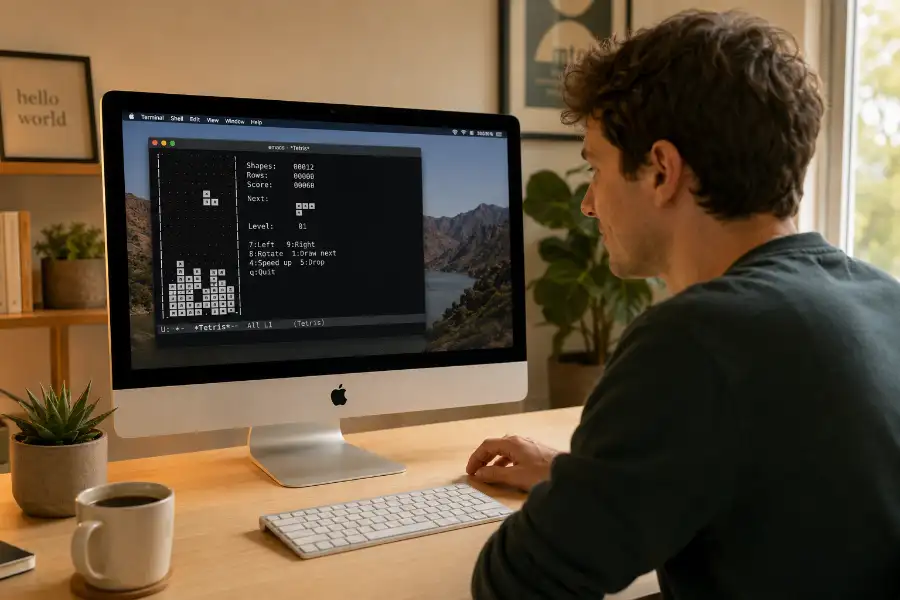
Mac Terminal Tetris is a fully playable version of the classic Tetris puzzle game that runs inside your Mac’s Terminal application. The game was not made by Apple. It comes bundled with a program called GNU Emacs, a text editor with roots going back to the Massachusetts Institute of Technology in the 1970s.
Emacs started as a code and text editing tool built for serious software development work. Over the years, its developers added a small collection of games and interactive programs to the software as personal side projects. These were not planned features or officially approved additions, but rather classic software eggs left by developers. They were things that individual developers at MIT and the Free Software Foundation built during spare time, often as experiments, and then left in the codebase permanently. Today, those games ship with every standard installation of Emacs, and they have found their way onto millions of Mac computers simply because Emacs shipped with macOS for years as part of its Unix foundation.
The Tetris game you get through Emacs is about as stripped-down as Tetris can be. There are no graphics, no music, no hold piece, and no ghost piece showing where your block will land. What you get is a functional, text-based version of the game with the seven standard Tetromino shapes, a working scoring system, and speed that increases as your score climbs. It is rough around the edges, and that roughness is a big part of what makes finding it feel special.
An Important Note for Newer macOS Users
Before getting into the steps, there is something worth knowing if you are running macOS Ventura, Sonoma, or Sequoia on your Mac. Starting with macOS Ventura (version 13), Apple removed several developer utilities from the default installation, and Emacs is one of the programs that no longer comes pre-installed on newer Macs.
If you try typing emacs into Terminal on a fresh Ventura, Sonoma, or Sequoia installation, you will either get a prompt asking you to install Xcode Command Line Tools, or you will see a “command not found” error message. Either way, the game will not run until you have Emacs installed on your system.
There are two ways to get it. The first option is to let macOS install Xcode Command Line Tools when it prompts you to. This puts a version of Emacs on your Mac along with other developer utilities. The second option is to use Homebrew, a free package manager for macOS, which gives you a more current version of Emacs with a straightforward installation process. Both methods work for running the games.
To install Emacs via Homebrew, first install Homebrew itself by pasting this command into Terminal and pressing Return:
/bin/bash -c "$(curl -fsSL https://raw.githubusercontent.com/Homebrew/install/HEAD/install.sh)"
Once Homebrew finishes setting up, type this command and press Return:
brew install emacs
Homebrew will download and install Emacs. After that finishes, every game and Easter egg covered in this article will work as described. If you are running macOS Monterey (version 12) or any earlier release, Emacs is most likely already on your system and you can skip this step entirely.
How to Open Terminal on a Mac
Terminal is the application that gives you direct access to your Mac’s command-line interface. To open it, press Command and Space at the same time to bring up Spotlight Search, type Terminal, and press Return. You can also find it by opening Finder, clicking on Applications in the left sidebar, opening the Utilities folder inside Applications, and double-clicking Terminal.
Once Terminal opens, you will see a window with a blinking cursor and a command prompt waiting for input. Every command in this article goes into that prompt.
Method One: The Full Emacs Launch
This is the way most people first encounter Mac Terminal Tetris. It takes a few more steps than the shortcut approach, but walking through it shows you how Emacs works and makes finding the other hidden games easier afterward.
Step 1: Type emacs into Terminal and press Return.
Emacs opens and fills your Terminal window with its welcome screen. You will see information about the GNU project, the version of Emacs currently installed, and some basic navigation notes. You do not need to read any of it.
Step 2: Press the Escape key.
After pressing Escape, the Emacs interface shifts and a small prompt appears at the very bottom of the Terminal window.
Step 3: Press the X key.
Pressing X after Escape brings up a command input at the bottom of the screen that looks like this:
M-x
The M stands for Meta, which in Emacs refers to the Escape key. M-x means you pressed Escape followed by X, and it opens a command line where you can type the name of any Emacs function. The games are functions, which is why this step is necessary.
Step 4: Type tetris and press Return.
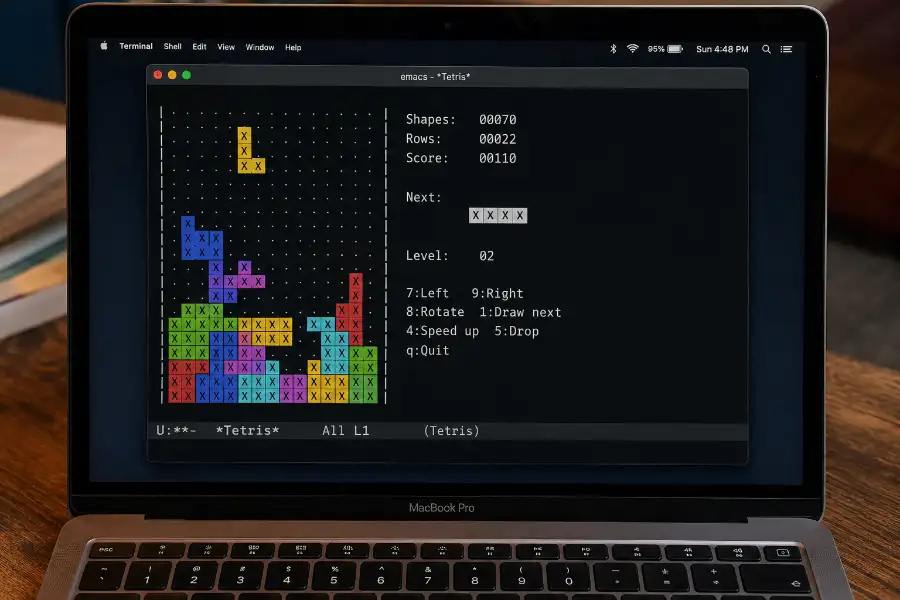
The Tetris game launches right away. The game board appears on the left side of the Terminal window. On the right, you will see your current score, the total number of pieces that have fallen, and the number of rows you have cleared. The game begins immediately after launching, so be ready.
Method Two: The Direct Launch Command
If you want to bypass the Emacs welcome screen and the Escape-X sequence altogether, a single command launches Tetris without any intermediate steps. Type this into Terminal and press Return:
emacs -q --no-splash -f tetris
The game opens right away with no setup screens in between. This is the faster option when you want to start playing without going through any of the Emacs interface first.
Controls for Mac Terminal Tetris
The controls are straightforward and take very little time to get comfortable with.
The Left arrow key moves the current piece one column to the left. The Right arrow key moves it one column to the right. The Up arrow key rotates the piece clockwise. The Down arrow key does not behave the same way it does in most modern Tetris games. In Emacs Tetris, pressing Down does not perform a soft drop. Use the Spacebar instead to hard-drop the current piece straight to the lowest available position on the board. This is the adjustment that catches most new players off guard.
Press P to pause the game. Press P again to resume. Press Q to quit the current game and return to the Emacs interface. To close Emacs and return to the regular Terminal prompt, press Control and Z together, then Control and C.
Something to keep in mind: this version of Tetris has no counter-clockwise rotation. The Up arrow always rotates clockwise, which means rotating a piece three times clockwise is the workaround for what would normally be a single counter-clockwise turn. If you play Tetris regularly on other platforms, this will take a few games to get used to.
How the Scoring System Works
The scoring in Emacs Tetris works differently from most modern versions of the game in one important way. Clearing multiple lines at the same time does not award bonus points based on how many lines you cleared at once. In standard competitive Tetris, clearing four rows in one move (called a Tetris) gives you significantly more points than clearing four separate single rows. In Emacs Tetris, the value per cleared row stays the same regardless of how many rows you clear in a single move.
This changes what the best approach looks like. Rather than building a tall column and waiting for a long I-piece to clear four rows at once, keeping the board flat and clearing rows steadily gives you the same reward with far less risk. The score display on the right side of the screen updates after every cleared row and every placed piece, so you always have a live read on where your score stands.
The game’s falling speed increases as your score rises. There is no level number shown on screen, but you will notice the pieces arriving faster after the first few hundred points. The increase is gradual at first and then becomes significant once you pass a certain threshold.
The Full List of Games Hiding in the Same Place
Tetris is the most well-known of the Emacs games, but it is far from the only one available. Once Emacs is running, you can launch any of the following games using the same M-x method described above or by replacing “tetris” in the direct command with the game name of your choice.
Snake works as you would expect. You steer a growing snake across a grid and try not to crash into your own tail or the borders. Use the arrow keys to change direction.
Pong puts a two-paddle text game on your screen. The right player uses the Up and Down arrow keys. The left player uses the 4 and 6 keys on the keyboard, or Left and Right arrow keys depending on your version of Emacs. You can play against another person sitting at the same keyboard.
Solitaire gives you a text version of peg solitaire, a puzzle where you jump pegs over each other and try to leave only one peg remaining on the board.
Doctor is one of the stranger additions to the collection. It runs a text-based simulation of a therapy session based on the ELIZA program, one of the earliest conversational computer programs ever built, created at MIT in 1966. You type responses and it replies in the manner of a Rogerian therapist. The responses it generates are oddly coherent at times and completely off-base at others. It is quirky and worth spending a few minutes with.
Life runs Conway’s Game of Life, the famous cellular automaton simulation where cells on a grid switch on and off according to a simple set of rules. It runs on its own and you watch the patterns spread, collapse, and regenerate.
Gomoku is a strategy game for two players on a grid where each player tries to place five pieces in an unbroken line. You play against the computer. Use the keyboard to navigate the grid and place your pieces.
Dunnet is a text adventure game built in the style of the classic Zork games from the early 1980s. You type commands to navigate a world, pick up items, and earn points. Commands like “go north,” “pick up flashlight,” and “look” are how you interact with the environment. Dunnet is one of the more involved programs in the collection and rewards patience. You can launch it without going through Emacs by typing this directly into Terminal:
emacs -batch -l dunnet
To see every game and amusement program in your Emacs installation, type this command into Terminal to list the full games directory:
ls /usr/share/emacs/$(emacs --version | head -1 | grep -o '[0-9.]*')/lisp/play
This command finds your specific version of Emacs and lists every file in its play folder.
Easter Eggs Hidden Inside Emacs
Beyond the games, Emacs holds a few genuinely odd Easter eggs that most users never come across.
The Yow Command
Open Emacs, type M-x (Escape then X), type yow, and press Return. Emacs will display a random absurdist phrase pulled from a collection of lines written in the voice of Zippy the Pinhead, a comic strip character known for nonsensical, stream-of-consciousness dialogue. Type yow again and you get a different phrase. The phrases are stored in a text file that ships with Emacs and range from mildly odd to completely inexplicable.
This Easter egg exists because one of the Emacs contributors was a fan of the comic strip and added the phrase file to the codebase. It has been in Emacs ever since.
Zone Mode
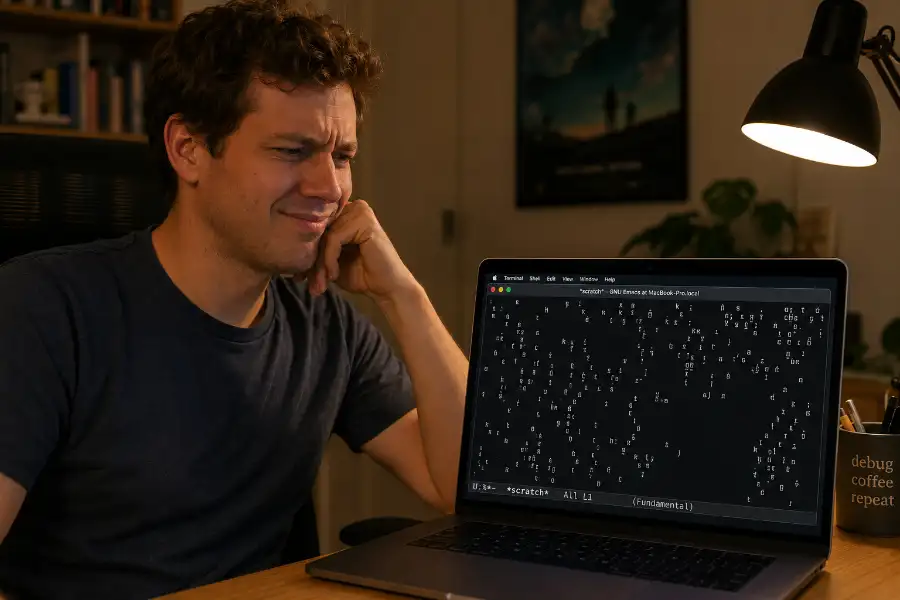
Inside Emacs, type M-x, then type zone, and press Return. Zone mode is an animated screen saver that takes whatever text is currently on screen and begins dissolving it. Letters drift apart, words scatter, and the whole window goes into an animated state that cycles through several distinct visual styles the longer you leave it running. Press any key to stop it and return to normal.
Zone mode was written as an idle-time program and has no use beyond being visually strange. It has stayed in Emacs for the same reason the yow command has: people find it and enjoy it, and that is enough.
Bastet: The Cruellest Version of Terminal Tetris
If Emacs Tetris ever starts feeling too manageable, there is a Homebrew-installable alternative called Bastet that approaches the game from a deliberately unpleasant angle. The name combines the words bastard and Tetris, which tells you most of what you need to know before you even start.
Bastet uses an algorithm that looks at your current board layout and calculates which piece would cause you the most difficulty. That piece is then what you receive, every single time. The game is designed to give you the worst possible piece for your situation on every single drop, without exception.
To install Bastet, type this into Terminal:
brew install bastet
After installation, type bastet and press Return to start. The controls follow the same pattern as standard Tetris. The experience is considerably more punishing.
Players who feel comfortable with Emacs Tetris often find Bastet surprisingly hard to manage, because good Tetris play usually depends on receiving a mix of pieces and maintaining a workable board. Bastet removes the mix and replaces it with a stream of deliberately unhelpful choices. Getting a high score requires adapting to bad pieces consistently rather than waiting for the right one, which develops a genuinely different kind of skill.
Tips for Playing Better in Emacs Tetris
A few habits make a real difference once you start pushing for higher scores in the Emacs version specifically.
Keep the board as flat as you can at all times. Because clearing multiple lines at once gives no extra reward, there is no benefit to saving a narrow column for a four-line clear. A flat board cleared steadily outperforms a risky stacking strategy in this particular scoring setup.
Pay attention to piece colors as an early recognition cue. Z-shaped pieces appear in pink or red tones. S-shaped pieces appear in aqua or teal. Recognizing the shape by its color before your eye fully registers the silhouette helps you decide placement faster, which matters more as the game speeds up.
Use the hard drop early and often. Since there is no soft drop available, new players sometimes try pressing Down and get confused when the piece does not move faster. The Spacebar is your only quick-drop option, and building the habit of using it right away when you know where a piece belongs keeps your pace steady as the speed increases.
When a piece appears and you know immediately where it goes, commit and drop it rather than hesitating. The game gives you enough time to slide a piece into position before it descends far enough to get stuck, so trusting your first instinct and dropping quickly is almost always the right call compared to pausing and second-guessing.
How to Quit Emacs Properly
One thing that trips up first-time Emacs users is not knowing how to close the program cleanly. Clicking the red close button in the corner of the Terminal window or pressing Command-Q closes Terminal itself, which works but shuts down everything in the process.
The cleaner way is to press Control and X together, then Control and C. This tells Emacs to close and returns you to a regular Terminal command prompt without shutting down the Terminal window. From there you can type another command, launch a different game, or close Terminal on your own terms.
If Emacs ever freezes or stops responding, pressing Control and Z followed by Control and C forces it to close and reliably brings you back to the Terminal prompt.
Wrapping Up
Mac Terminal Tetris is one of those features that makes long-time Mac users feel like they have been walking past the same door for years without ever opening it. The game has been sitting in the same corner of macOS since before most people bought their first Apple computer, left there by developers who built it for fun and kept it in as a small surprise for anyone who went looking.
Getting it running takes two minutes on older Macs and a few extra steps on newer ones. Once it is going, the full collection of Emacs games opens up alongside it. From the strange comfort of talking to the Doctor, to the relentless difficulty of Bastet, to the nonsense wisdom of the yow Easter egg, there is far more hiding in that part of your Mac than most people ever find.
Open Terminal, type the command, and play a round. Then try a different game. Then find the yow Easter egg and read a few phrases. Once you start looking around in that corner of your Mac, you will keep finding things worth seeing.