Task Manager Keyboard Shortcut: Every Method for Windows, Mac and Chromebook
Your screen freezes. Your mouse stops moving. Panic sets in. This is the exact moment you need a task manager keyboard shortcut, and you need it fast.
Good news. You do not need to touch your mouse at all. In this article, you will learn every shortcut that opens Task Manager on Windows, Mac, and Chromebook. You will also learn shortcuts that work once Task Manager is already open, so you can close a stuck program without clicking a single thing.
The Fastest Task Manager Keyboard Shortcut (Windows)
Press these three keys at the same time:
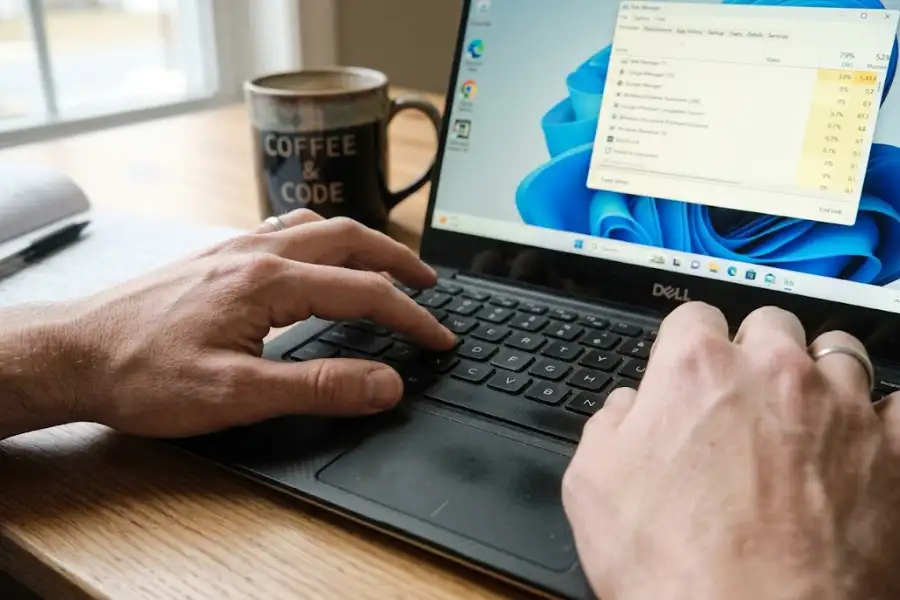
Ctrl + Shift + Esc
That is it. Task Manager opens right away. No menu. No extra click. This is the quickest shortcut because it skips the security screen that other methods show you.
This shortcut works on Windows 7, Windows 8, Windows 10, and Windows 11. It also works even when your computer feels slow or laggy, because Task Manager runs with high priority in Windows.
Other Ways to Open Task Manager on Windows
Ctrl + Shift + Esc is the best option. But it helps to know backup methods too, in case one does not work on your setup.
- Ctrl + Alt + Delete: This opens a blue security screen. Click “Task Manager” from the list. It takes one extra step, but it works on almost every Windows PC ever made.
- Windows key + X: This opens the Power User menu. Look for “Task Manager” in the list and select it.
- Windows key + R: This opens the Run box. Type taskmgr and press Enter.
- Right-click the taskbar: On Windows 10, you can right-click an empty spot on your taskbar and choose “Task Manager.” Note that Windows 11 removed this option from the taskbar menu.
Each of these gets you to the same place. Pick the one that feels easiest for you to remember.
How to Open Task Manager on a Mac
Mac computers do not use the word “Task Manager.” The Mac version is called Activity Monitor, and it does the same job. It shows you every running app and lets you force one to quit.
There is no single keyboard shortcut that opens Activity Monitor directly. Instead, Mac gives you a shortcut for the most common reason people need it: closing a frozen app.
Option + Command + Esc
This opens the “Force Quit Applications” window. Select the frozen app from the list and click “Force Quit.” This is the Mac equivalent of using Task Manager to end a task on Windows.
If you want the full Activity Monitor window with performance graphs and details, open Spotlight Search with Command + Space, then type Activity Monitor and press Enter.
How to Open Task Manager on a Chromebook
Chromebooks have their own version too, and it has a dedicated shortcut:
Search key + Esc
(On some keyboards, the Search key looks like a magnifying glass.) This opens the browser’s own system utility, which works just like using the Chrome Task Manager Shortcut on any desktop, where you can see which browser tabs or apps are using too much memory and end them.
Keyboard Shortcuts Inside Task Manager (No Mouse Needed)
Here is the part most guides skip. Once Task Manager is open, you can do almost everything using only your keyboard. This matters a lot if your mouse or trackpad has also frozen.
- Arrow keys (Up/Down): Move between the list of running programs.
- Delete key: End the selected task, once you have highlighted it with the arrow keys. This works the same as clicking “End Task.”
- Tab: Move between different sections of the Task Manager window.
- Ctrl + Tab: Switch between tabs like Processes, Performance, and Startup.
- F5: Refresh the list of running programs, so you see the most current information.
- Alt + F4: Close the Task Manager window once you are done.
With just these keys, you can open Task Manager, find the frozen program, end it, and close the window again, all without ever touching your mouse.
What to Do If the Shortcut Does Not Work
Sometimes Ctrl + Shift + Esc does not respond. This is rare, but it happens. Here are the most likely reasons and fixes.
- Your computer is completely frozen. Wait 10 to 15 seconds. Sometimes the system is just slow to respond, not fully stuck.
- Task Manager has been disabled. This sometimes happens on work or school computers due to admin settings. You will need an administrator to turn it back on.
- Windows Explorer has crashed. Try Ctrl + Alt + Delete instead, since it uses a different system process to open.
- A malware program is blocking it. If Task Manager will not open through any method, run a virus scan as soon as you can access your computer again.
If none of these shortcuts work and your screen stays completely frozen for more than a minute, a hard restart (holding the power button for 10 seconds) is your last resort. Save this step for when nothing else responds.
Why This Shortcut Matters
People treat this like a small trick, but it saves real time. Just like hunting down a specific keyboard shortcut for strikethrough to avoid clicking through formatting menus, mastering system hotkeys helps you close a frozen browser tab, a stuck download, or a game that will not close in less than two seconds. A shortcut takes less than two seconds. Over a year of daily computer use, that adds up to hours saved.
It also protects your work. Instead of doing a hard restart and losing unsaved files, you can close just the one broken program and keep everything else running. It is exactly the kind of clever software egg shortcut that keeps your system efficient and under your control.
Frequently Asked Questions
What is the shortcut key for Task Manager?
The main shortcut on Windows is Ctrl + Shift + Esc. It opens Task Manager directly, with no extra menu or click needed.
Does Ctrl + Alt + Delete open Task Manager directly?
No. It opens a security screen first. You then need to click “Task Manager” from the options shown.
What is the Task Manager shortcut on a Mac?
Mac does not have Task Manager. The closest tool is Activity Monitor, and the shortcut Option + Command + Esc opens the Force Quit window for closing stuck apps.
Can I end a task without using my mouse?
Yes. Open Task Manager, use the arrow keys to select the program, then press Delete to end it. No mouse is required.
Why is my Task Manager shortcut not working?
This is usually caused by a full system freeze, an admin restriction, or a crashed Explorer process. Try Ctrl + Alt + Delete as a backup, or restart your computer if nothing responds.
Final Thoughts
The task manager keyboard shortcut is one of the simplest tools you can learn, and one of the most useful. Whether you use Windows, Mac, or a Chromebook, there is a fast keyboard combination ready for the moment something freezes. Practice it once or twice, and it will stick in your memory for good.