YouTube Keyboard Shortcuts: 40+ Hidden Keys That Save Hours
You click pause. You drag the volume slider. You hunt for that tiny captions button. Then you do it all over again on the next video. If you watch YouTube for even an hour a day, that adds up to a lot of wasted clicks every single year.
The good news? YouTube has more than 40 keyboard shortcuts hidden inside the player. Most people only know two or three. Once you learn the rest, watching videos feels twice as fast and ten times smoother.
I have personally tested every shortcut in this article on the latest version of YouTube using Chrome, Firefox, and Edge. They all work the same way across browsers. Let me walk you through them one by one.
One Quick Rule Before We Start
Keyboard shortcuts only work when the video player is selected. If your cursor is sitting inside the search bar or the comment box, the keys will type letters instead.
To make sure shortcuts work, click once anywhere on the video first. You will see a thin outline appear around the player. That means it is ready to take your shortcut commands.
Play, Pause, and Speed Shortcuts
These are the shortcuts you will use the most. Learn these five first, and you will already feel the difference today.
- K or Spacebar: Play or pause the video
- Shift + >: Speed up the playback
- Shift + <: Slow down the playback
- , (comma): Go back one single frame, but only when the video is paused
- . (period): Go forward one single frame, but only when the video is paused
The frame-by-frame trick is great for sports clips, dance moves, magic tricks, or any moment you want to study closely. Most people have no idea this exists.
Skipping and Jumping Shortcuts
Tired of dragging that little progress bar with your mouse? These keys jump you around the video with one tap.
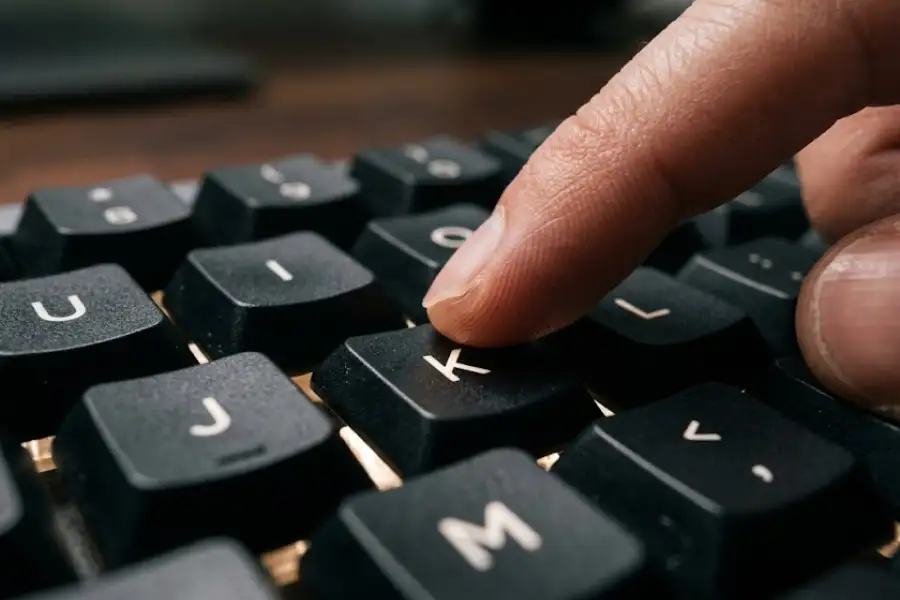
- J: Jump back 10 seconds
- L: Jump forward 10 seconds
- Left Arrow: Go back 5 seconds
- Right Arrow: Go forward 5 seconds
- Home: Jump to the very start of the video
- End: Jump to the very end of the video
- 0: Same as Home (start of the video)
- 1 through 9: Skip to 10%, 20%, 30%, all the way up to 90% of the video
The number keys are a lifesaver for long videos. Pressing 5 takes you to the middle. Pressing 9 takes you near the end. This is perfect for finding a key moment in a 30-minute review.
Volume and Mute Shortcuts
Quick fixes for loud ads, quiet talkers, or late-night viewing when you do not want to wake anyone up.
- Up Arrow: Raise the volume by 5%
- Down Arrow: Lower the volume by 5%
- M: Mute or unmute the sound
Pro tip: If a YouTube ad blasts in at full volume, just tap M. You can finish out the ad in silence and unmute the second your video starts.
Fullscreen, Theater, and Miniplayer Shortcuts
YouTube has four different ways to view a video. These shortcuts switch between them in one tap.
- F: Turn fullscreen on or off
- T: Turn theater mode on or off (wider player without going fullscreen)
- I: Open the miniplayer (a small floating window)
- Esc: Exit fullscreen mode or close the search bar
Theater mode is my personal favorite. It gives you a bigger video without hiding the rest of the page, which is perfect for watching while you read the comments below.
Caption and Subtitle Shortcuts
Captions help you read along, learn a new language, or watch in noisy places like a coffee shop or a busy office.
- C: Turn captions on or off
- O: Adjust caption transparency (works on the older caption style)
- W: Adjust caption window settings
- +: Make caption text bigger
- –: Make caption text smaller
Most people miss the C key. It is one of the easiest shortcuts and works on almost every video that has captions available.
Playlist and Channel Navigation Shortcuts
If you watch playlists or jump between videos often, these will save you a lot of mouse clicks.
- Shift + N: Go to the next video
- Shift + P: Go to the previous video
- / (forward slash): Move your cursor straight to the search bar
The slash key is a hidden gem, much like finding the perfect software egg. No more reaching for the mouse just to start a new search. Just tap slash and start typing.
Hidden Shortcuts Most Articles Skip
Here is where this guide goes further than the rest. These shortcuts are real and useful, but most lists never mention them.
- Tab: Moves you through every button on the player one by one. This is great if your mouse stops working.
- Enter: Clicks the button you currently have selected with Tab.
- Shift + ?: Opens the official YouTube shortcut menu right inside the player. This shows you the full list anytime you forget one.
- Shift + Spacebar: Pauses the video without scrolling the page (a small but very useful difference).
- Double-click the left or right side of the player: Skips backward or forward 10 seconds. Not a key, but a hidden mouse trick almost no one knows about.
The Shift + ? trick is the one to remember above all others. If you ever forget a shortcut, that pop-up will remind you within one second.
YouTube Mobile Gestures (Bonus Section)
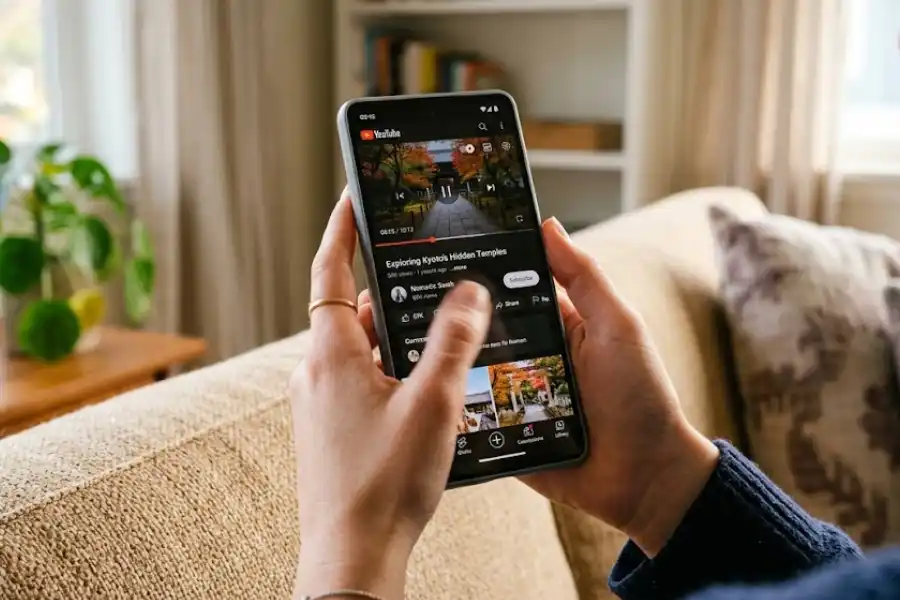
Phone and tablet users do not have keyboards, but YouTube has secret tap and swipe gestures that work just like shortcuts. Most articles forget this part.
- Double-tap the left side: Skips back 10 seconds
- Double-tap the right side: Skips forward 10 seconds
- Long press anywhere on the video: Speeds up to 2x while you hold your finger down
- Swipe up: Enters fullscreen mode
- Swipe down: Exits fullscreen or shrinks the player into a small floating window
- Pinch out with two fingers: Zooms the video to fill the screen
The long-press 2x speed trick is perfect for skipping slow parts of a tutorial without permanently changing the playback speed setting.
Why Are My YouTube Shortcuts Not Working?
This is one of the most common questions, and almost no shortcut guide answers it. Here are the real reasons your keys might not work.
- The video player is not selected. Click on the video once and try again.
- You are typing in a comment or search box. The keys are typing letters instead of running shortcuts.
- You are on YouTube Music or YouTube Kids. Some shortcuts work differently or not at all on those apps.
- A browser extension is blocking them. Try turning off ad blockers or video helper extensions one by one to find the problem.
- You pressed the wrong key combo. Some shortcuts need Shift, like Shift + N for the next video.
If none of these fixes work, just refresh the page. A simple reload solves the issue most of the time.
How to Build the Shortcut Habit
The biggest shift for most users is realizing that the mouse is the slow part of YouTube. Once you trust the keyboard, every click starts to feel like a delay you no longer have to put up with.
Heavy YouTube users tend to stack shortcuts together. For example, tapping J twice quickly jumps back 20 seconds. Tapping L three times jumps forward 30 seconds. The shortcuts add up the more you tap them.
You can also combine shortcuts to do things faster. Try pressing T for theater mode, then C for captions, then K to play. Three keys, three actions, no mouse movement at all.
Frequently Asked Questions
Can I make my own custom YouTube keyboard shortcuts?
YouTube does not let you change the default shortcuts directly. But you can install free browser extensions like Enhancer for YouTube that add custom hotkeys and let you remap keys to your liking.
Do these shortcuts work on YouTube TV or YouTube Music?
Many basic ones do, such as the Spacebar for pause and the arrow keys for seeking. But some shortcuts, like T for theater mode and I for the miniplayer, only work on the main YouTube website.
Why does pressing space scroll my page instead of pausing the video?
That happens when the video player is not selected. Click once on the video and the Spacebar will pause it instead of scrolling the page.
What is the fastest way to learn all these shortcuts?
Press Shift + ? while on any YouTube video. The full official list pops up right on the screen. You can also bookmark Google’s official Help Center page as a written reference. Use it as a cheat sheet for a few days, and you will remember most shortcuts within a week.
Do shortcuts work in embedded YouTube videos on other websites?
Most of them do, like the Spacebar, K, M, F, and the arrow keys. But site-specific ones like / for search will not work, since the search bar is not part of an embedded video.
Are there any shortcuts for YouTube live streams?
Yes. Spacebar, K, M, F, and C all work on live streams. Skipping shortcuts like J, L, and the arrow keys only work for the parts of the stream that have already aired and been saved.
Do YouTube shortcuts work on Mac and Windows the same way?
Yes. The shortcuts in this guide work the same on Windows, Mac, and Linux. The only small difference is that some Mac keyboards label the Home and End keys differently, but the function is the same.
Conclusion
You do not need to learn all 40 shortcuts in one sitting. Pick just five today: K, J, L, M, and F. Use them for a week and let them sink into your muscle memory.
Once those feel natural, add five more. In a month, you will be flying through YouTube without ever touching the mouse. Your wrists will thank you. Your time will, too.
Save this page so you can come back any time you forget a shortcut. And the next time you sit down to watch a video, try Shift + ? first. The whole list is right there, waiting for you.